Adobe Premiere Pro CC 2015.4
— Adobe Premiere Pro CC 2015. Прекращена работа программы Adobe Premiere Pro CC 2015. Имя модуля с ошибкой: MSVCR120.dll. Месторасположение модуля: C:\Windows\system32\MSVCR120.dll.
MSVCR120.dll это файл Microsoft Visual Studio 2013, он требуется для запуска программ разработанных с помощью Microsoft Visual C++.
Решение проблемы: в Control Panel / Панель управления, удаляем все Microsoft Visual C++ файлы до 2012 версии. Качаем и заново ставим:
https://www.microsoft.com/ru-RU/download/details.aspx?id=40784
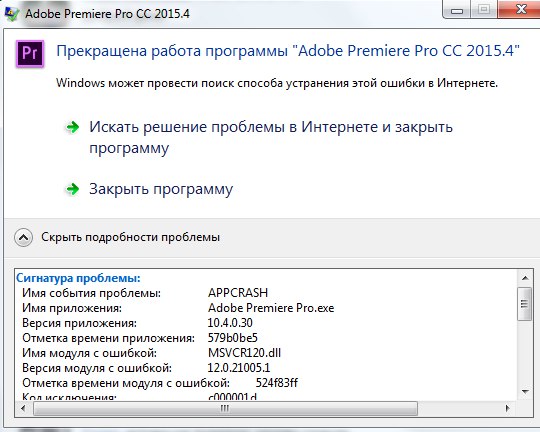
*Adobe Premiere Pro CC 2015.4. Прекращена работа программы Adobe Premiere Pro CC 2015.4. Если ошибка связана с модулями: VCRUNTIME140.dll и MSVCP140.dll, то устанавливаем Microsoft Visual C++ 2015, так как после июньского апгрейда Adobe Creative Cloud, он использует Visual C++ 2015. Который можно скачать с официального сайта:
https://www.microsoft.com/en-us/download/details.aspx?id=48145
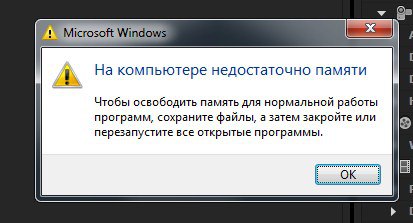
— Утечка памяти: Microsoft Windows. На компьютере недостаточно памяти. Чтобы освободить память для нормальной работы программ, сохраните файлы, а затем закройте или перезапустите все открытые программы. Нажимаем на кнопку: ОК.
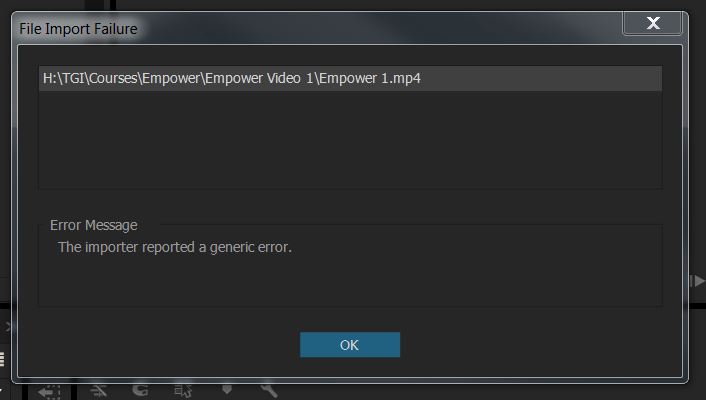
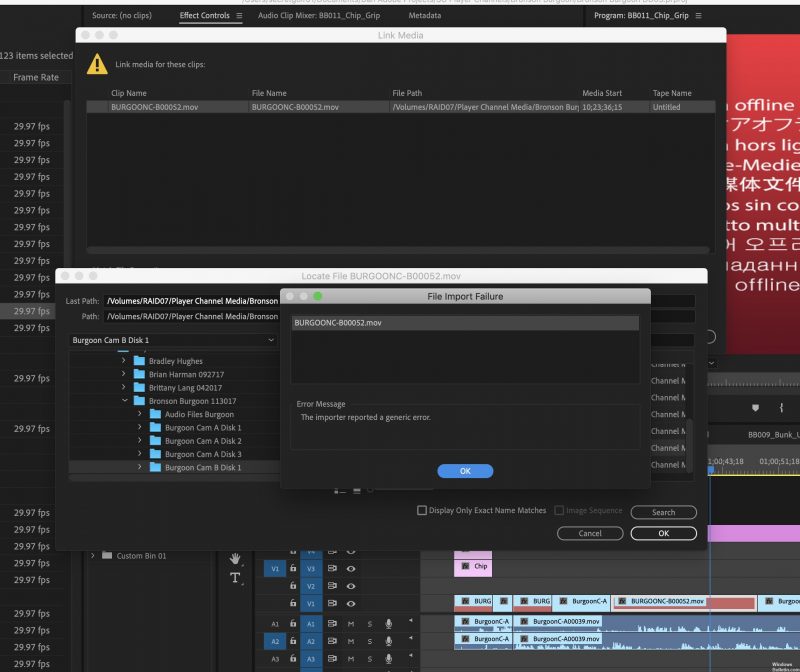
— При импорте видео, получаем ошибку: The importer reported a generic error в окне File Import Failure.
Решение проблемы, нажимаем правую кнопку мыши на Adobe Premiere Pro.exe, выбираем: Свойства. И назначаем приложению: Полный доступ.
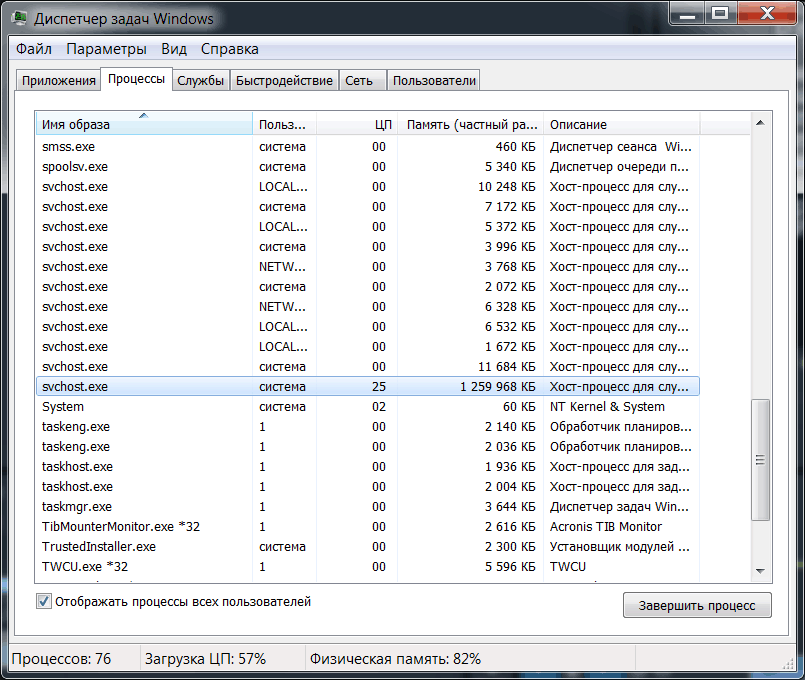
— Медленный рендеринг программы Adobe Premiere Pro CC 2015.4. Нажимаем Ctrl+Alt+Delete и видим что системный процесс svchost.exe забирает 25% мощности процессора и 1.2Гб оперативной памяти. Выделяем его и нажимаем на кнопку: Завершить процесс.
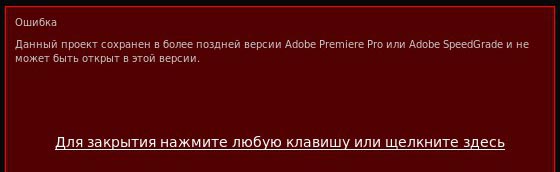
— Ошибка. Данный проект сохранен в более поздней версии Adobe Premiere Pro или Adobe SpeedGrade и не может быть открыт в этой версии.
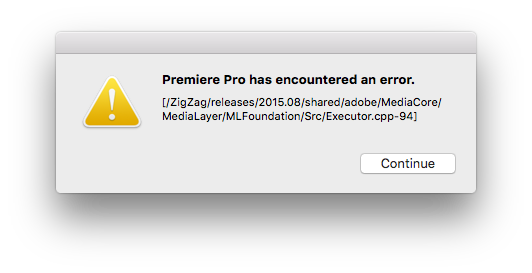
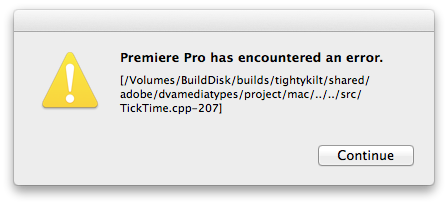
— Premiere Pro Debug Event.Premiere Pro has encounter an error.[/Volumes/BuildDisk/builds/tightykilt/shared/adobe/dvamediatypes/project/../../src/TickTime.Cpp-207].
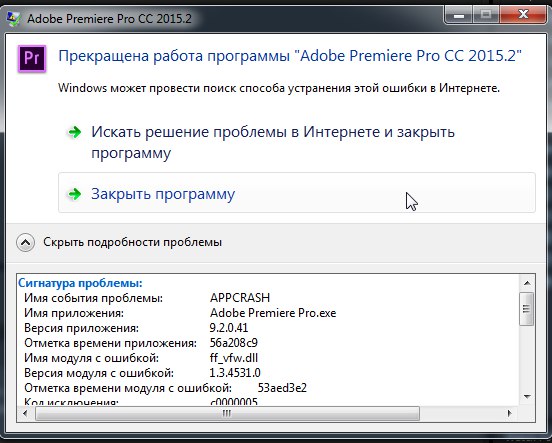
— Adobe Premiere Pro CC 2015.2. Прекращена работа программы Adobe Premiere Pro CC 2015.2. Имя модуля с ошибкой: ff_vfw.dll. Месторасположение модуля: C:\Windows\syswow64\ff_vfw.dll.
Решение: ff_vfw.dll это ffdshow VFW (может в составе K-Lite Codec Pack), деинсталируйте его.
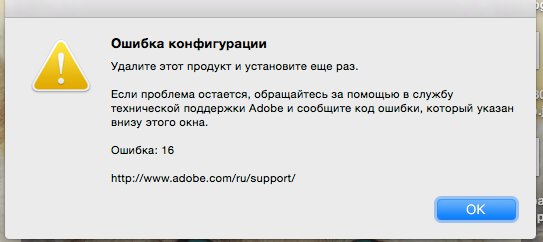
— Ошибка конфигурации. Удалите этот продукт и установите еще раз. Если проблема остается, обращайтесь за помощью в службу технической поддержки Adobe и сообщите код ошибки, который указан внизу этого окна. Ошибка: 16.
Про решение Ошибка: 16 подробнее читаем здесь.
— Video Preview Error. Error compiling movie. GPU Render Error. Unable to process frame (Ошибка предпросмотра видео. Ошибка компиляции фильма. Ошибка рендеринга с использованием GPU. Невозможно обработать фрейм). Быстрый вариант лечения: отключить GPU ускорение.
How to Fix The Importer Reported a Generic Error in Adobe Premiere
Adobe Premiere is one of the leading video editing software. The Adobe Premiere Pro is the successor of Adobe Premiere. The software was first introduced in the year 2003 and soon gained notoriety for its user-friendly interface, features, and potency. Like every other application, it does happen to trouble its users with a few errors now and then. One of them being the ‘The importer reported a generic error’ error message. This appears when you are trying to import videos into the timeline using the importer. This can be due to a lot of reasons, for example, unsupported codec or video file format.
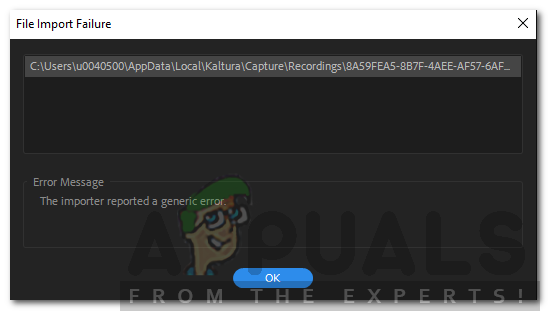 The Importer Reported a Generic Error
In this article, we will be going through the error message by discussing its causes and later on mentioning the solutions that you can apply to get rid of the error message; thoroughly. Hence, let us start with the causes.
What causes the ‘The Importer Reported a Generic Error’ Error Message in Adobe Premiere?
As we have mentioned earlier, the error message appears while you are using the importer to import video files. This can be due to the following reasons:
With that being said, let us get into the real part and help you through this ordeal. Please follow all the solutions provided if one or two of them do not work out for you.
Solution 1: Check Video File Format and Codec
The first thing you should do when you face the error message is to verify that the format the video is in and the codec is supported by Adobe. Certain codecs are not supported by Adobe Premiere, for example, support for the QuickTime codec was dropped by Adobe. In such a case, you will have to transcode the footage to a newer/modern codec.
Similarly, if the video file format is not supported by Adobe, then, you will not be able to import the file. Likewise, you will have to change the format of the video file which is pretty easy. Please refer to this link for a list of supported video file formats.
Solution 2: Cleaning the Media File Cache
Another thing that you can do is try to delete the media files cache and then try to import your files. When you import video or audio files into Adobe Premiere, it stores versions of these files that it can quickly access again for better performance. These stored versions are referred to as Media Cache Files. Here’s how to delete the files:
Solution 3: Move the Files to a Different Location or Rename Them
In some scenarios, the issue might be due to the specified path of the video or audio files. In such a case, you will have to change the path of the files i.e move them to a different drive or just a different folder. This was reported by many users and has helped them resolve the issue.
You can also try to just simply rename the files in the same directory and then try importing the files. If it doesn’t work, then just move them to a different location.
Solution 4: Reinstall Premiere Pro
If all of the above-mentioned solutions do not work out for you, there might be an issue with the installation of the software and you will have to reinstall it. Here’s how to do it:
Исправить импортер сообщил об общей ошибке в Adobe Premiere
Обновление: Перестаньте получать сообщения об ошибках и замедляйте работу своей системы с помощью нашего инструмента оптимизации. Получите это сейчас на эту ссылку
Пустые файлы медиа кеша
Убедитесь, что вы удалили папку Media Cache Files, затем запустите Premiere Pro 13.0 и импортируйте свои файлы Yi.
Когда вы импортируете видео- и аудиофайлы в Adobe Premiere Pro, он обрабатывает версии этих файлов, к которым он может легко получить доступ для повышения производительности. Эти файлы известны как файлы кэша мультимедиа. Они хранятся в папке Media Cache Files. Также есть папка с базой данных, которая содержит ссылки на каждый из файлов в медиа-кеше. Это файлы «базы данных медиа-кеша». Вы находитесь в папке Media Cache.
Ноябрьское обновление 2021:

Обратите внимание, что даже после удаления всех файлов из кэша и открытия текущего проекта все равно будет задержка, поскольку для восстановления файлов потребуется время. Если у вас большой проект, вы должны выделить достаточно времени для восстановления файлов медиа-кэша. Это может быть сделано, например, в одночасье.

Проверка формата видеофайла и кодека
Если формат видеофайла не поддерживается Adobe, вы не сможете импортировать файл. Вам также нужно будет изменить формат видеофайла, что очень просто. Список поддерживаемых форматов видеофайлов см. По этой ссылке.
Заключение
Adobe предполагает, что эти распространенные ошибки импорта могут быть вызваны проблемами активации. Вот почему я вышел из своей учетной записи Creative Cloud и снова вошел. Это не сработало.
Наконец, мне пришлось открыть Creative Cloud, удалить Premiere Pro (сохранить настройки) и переустановить Premiere Pro. Перезагрузка не требуется! Я до сих пор не знаю, почему это сработало, но это сработало. Может быть, мой опыт и мое решение сэкономят вам драгоценное время при устранении этой странной ошибки.

CCNA, веб-разработчик, ПК для устранения неполадок
Я компьютерный энтузиаст и практикующий ИТ-специалист. У меня за плечами многолетний опыт работы в области компьютерного программирования, устранения неисправностей и ремонта оборудования. Я специализируюсь на веб-разработке и дизайне баз данных. У меня также есть сертификат CCNA для проектирования сетей и устранения неполадок.
Jody Bruchon
How can one man do so much? Coffee. That’s how.
[SOLVED] Premiere Pro: “The importer returned a generic error” when loading media
(Fellow video dudes: while you’re here for help with Premiere Pro’s bad behavior, maybe you’d also be interested in my article about why you shouldn’t be shooting with flat, log, or “cinema” picture profiles. It’s the second most popular article on the site. The one on disabling Adobe’s ever-growing log files might also be of interest.)
I recently had a Premiere Pro project I’d been working on for a couple of weeks that refused to import some clips. When I attempted to link the media again, I’d get a box that said “the importer returned a generic error.” What’s especially annoying is that the failing clips were from the same camera as several successful clips; there seemed to be no reason for these three or four clips to simply not work and I could play them in a media player just fine. The failure didn’t even happen after an update because I’d been working in the project using the latest updated version.
I checked file permissions on the network server and everything was good.
I deleted all of the Adobe caches and manually killed all Adobe processes in Task Manager.
I restarted the computer and even tried opening an auto-save of the project, yet all of these failed to resolve the problem.
Adobe suggests that these generic errors on import can be caused by activation issues, so I signed out of my Creative Cloud account and signed back in. Didn’t work.
In the end, what I had to do was open Creative Cloud, uninstall Premiere Pro (keeping preferences), and reinstall Premiere Pro. No reboot needed! I still don’t know why this worked, but it did. Maybe my experience and solution will save you some valuable time troubleshooting this odd error.
The importer reported a generic error premiere pro что делать
Welcome to the Community!
We have a brand new look! Take a tour with us and explore the latest updates on Adobe Support Community.
Copy link to clipboard


Copy link to clipboard
What are your export settings from Pr?
What operating system?
Embedded screenshots of your export settings might help us.
Copy link to clipboard
im using OS, big sur 11.2.2
also i dont know if this make any difference but im using the option » replace with after effects composition «
Copy link to clipboard
You are trying to use Dynamic Link to send the footage to Ae. I’ve had good success with that, but my colleagues here on the forum recommend against it for reasons just like the problem you’re having.
I recommend exporting from Pr to a digital intermediate. On your Mac, ProRes 4:4:4: in a Quicktime MOV wrapper should work well in Ae.