Ошибка «Часы спешат» и что с этим делать
Сегодня решила проверить свои автоворонки. И на один из сайтов с трипваером зайти не удалось. На странице сайта меня ждала ошибка – Google Chrome выдал:
«Часы спешат. Не удалось установить защищенное соединение с доменом из-за неверных настроек системных часов и календаря».
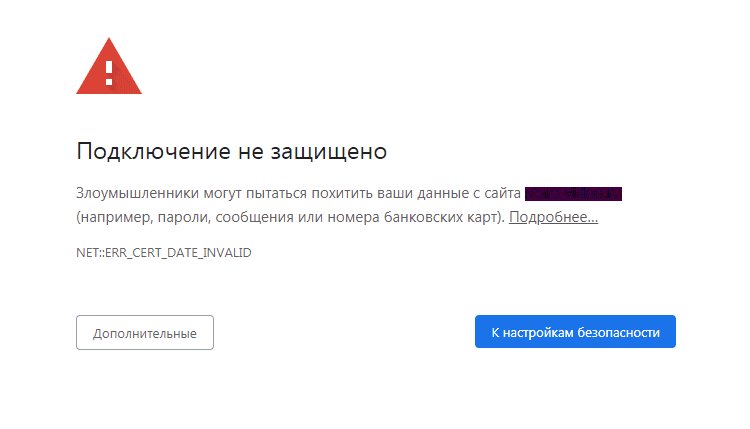
Попытка зайти через другой браузер выдала следующее:
«Часы отстают. Не удалось установить защищенное соединение с доменом из-за неверных настроек системных часов и календаря (четверг, 9 июля 2020 г., 18:29:22).
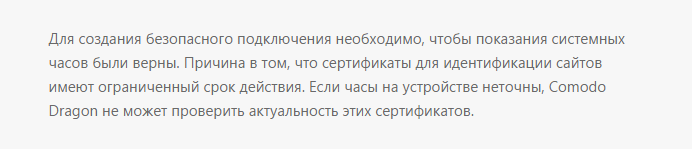
Мои же часы на ноутбуке показывали 19:29. Решила разобраться и по результатам написать небольшую статью. Если вы столкнетесь с такой неожиданностью, не торопитесь ругать свой компьютер – просто прочитайте этот материал, он поможет вам понять, в чем дело, и решить вопрос.
Почему возникает ошибка «Часы спешат или Часы отстают»
Чтобы объяснить причину того, что Chrome или другой браузер выдает ошибку «Часы спешат», нужно рассказать предысторию. Еще три года назад большинство сайтов работало по протоколу HTTP, что отражалось в адресной строке браузера в виде приставки http//, стоящей перед доменным именем веб-ресурса. Например, адрес нашего сайта в 2017 году выглядел бы так: http://stepvweb.ru.
Но с подачи Google как раз в 17-м в интернете началась революция борьба за информационную безопасность и всех стали переводить на более защищенный протокол передачи информации HTTPS. Все это привело к том, что сегодня, если ты хочешь успешно продвигаться в поисковых системах, твой сайт должен соответствовать определенным требованиям, в том числе необходимо, чтобы он работал по новому протоколу. А для этого нужно установить на сайт специальный SSL-сертификат. Обычно это можно сделать через хостинг-провайдера.
Однако ближе к теме, точнее, к причине проблемы.
Что делать, когда «Часы спешат»?
Другие возможные причины ошибки в браузере
Когда нужные страницы не работают в течение длительного времени, это может говорить о том, что их больше не существует. А иногда стоит проверить и часы на своем устройстве. Еще один вариант – очистить кеш браузера.
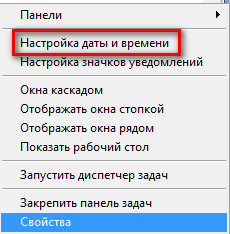
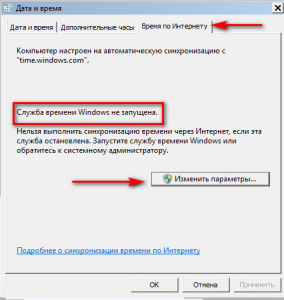
Как проверить время и дату на компьютере или ноутбуке
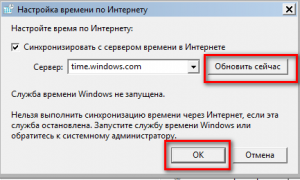
Как очистить историю браузера
Если с SSL-сертификатом все в порядке, еще одной причиной ошибки «Часы спешат. Не удалось установить защищенное соединение с доменом из-за неверных настроек системных часов и календаря» или «Часы отстают…» является устаревший кеш – временные файлы, которые сохраняет браузер для ускорения доступа к сайтам. Чтобы его очистить необходимо (на примере Google Chrome):
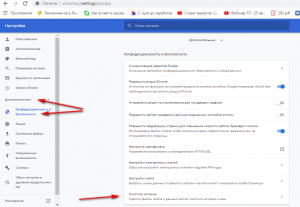
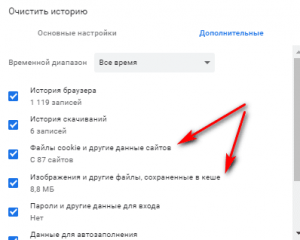
Надеюсь, один из трех способов борьбы с ошибкой «Часы отстают» или «Часы спешат» вам поможет.
Спасибо за внимательное прочтение!
Google Chrome: Your Clock is Ahead/Behind
The ‘Your clock is ahead / behind’ is an error that appears when Google Chrome users attempt to visit one or multiple websites. Most affected users are reporting that the issue seems to be exclusive to Google Chrome – the same website opens up just fine on different websites.
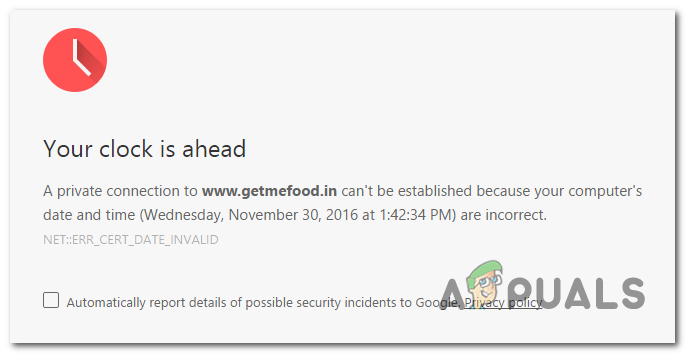 Google Chrome Error ‘Your Clock is Ahead / Behind’
In most cases, this error will occur due to an outdated system time & date. This can be resolved easily by modifying the values from the Date & Time values. However, it’s also possible that the issue is being facilitated by a faulty CMOS battery that is no longer able to remember the correct date & time in between restarts.
However, your Chrome’s cache can also create this issue in the event that it ends up storing date & time webserver information. If this scenario is applicable you can fix the issue by deleting Chrome’s cache and cookies.
But it turns out that the issue can also be beyond your control. An expired SSL certificate might also trigger the ‘Your clock is ahead / behind’. In this case, you can avoid the error by establishing a command-line argument or by contacting the web administrator and asking them to fix the issue.
How to Fix the ‘Your clock is Ahead/behind’ error?
1. Adjust the time & date
In most documented instances, the ‘Your clock is ahead / behind’ error will be eventually thrown due to an underlying NET::ERR_CERT_DATE_INVALID error. This typically occurs in an instance where the computer or the mobile device date & time is inaccurate.
Keep in mind that the majority of browsers will throw warnings if your date is off since it can mess up with security certificates. But so far, Chrome is the only one that will outright prevent you from accessing a webpage unless your date and time are correct.
If this scenario is applicable, here’s a quick guide on changing the date & time to the correct values in order to fix the ‘Your clock is ahead / behind’ error:
In case you see the same issue persisting or the time & date resets again at the next system startup, move down to the next method below.
2. Cleaning / Replacing CMOS battery
If the method above has worked only temporarily (you started encountering the same ‘Your clock is ahead / behind’ error at the next startup), chances are you’re encountering this issue due to the CMOS (Complementary Metal-Oxide Semiconductor) battery.
The purpose of this motherboard component is to remember data between restarts. It’s responsible for remembering the time, the date and a few other system settings. If you’re dealing with a faulty battery, your computer will start from scratch after every system startup.
In case, your date & time reset after every system startup, follow the instructions below for instructions on cleaning or replacing the CMOS battery:
3. Deleting Chrome’s Cache and Cookies
As it turns out, this issue can also occur due to a temporary file stored by your browser. It’s possible that you’re encountering this issue because of a cookie or a web cache that is currently storing date & time info that is now outdated. In this case, Chrome will not bother to check for new values, which might trigger the ‘Your clock is ahead / behind’ error.
To force your browser check for the current webserver time, follow the guide below to force Chrome to retrieve the correct date & time values:
In case the same ‘Your clock is ahead / behind’ error is still occurring, move down to the next method below.
4. Adding a Command-line Argument to Chrome launcher
If you’re certain that the error is being caused by a certain SSL error, you can avoid this error message entirely by modifying the launching sequence of Chrome so that it starts with the –ignore-certificate-errors as a command-line argument
While this workaround will allow you to visit SSL-revoked websites without encountering the ‘Your clock is ahead / behind’ error, it can also leave your system vulnerable to certain security risks.
Keep in mind that this procedure will ignore any other SSL errors, making you clueless when surfing online.
If you understand the consequences and you still plan on going forward with this procedure, here’s what you need to do:
In case the same issue is still occurring, move down to the next potential fix below.
5. Contact the Web administrator
If none of the methods above have allowed you to fix the issue and you are only encountering the issue with a particular website, it’s very likely that the issue is occurring due to an expired security certificate.
In case this particular scenario is applicable, the issue is beyond your control (unless you are the administrator). If you have admin login, renew the SSL (Secure Socket Layer) certificate to get the issue resolved.
But if you don’t have admin access, your only hope of getting the issue resolved is to contact the website admin and ask him to renew the SSL certificate.
Typically, you can contact the webmaster via the Contact us link, or by finding contact information using Whois search. To do this, visit this link (here), paste the domain you want to investigate and hit search.
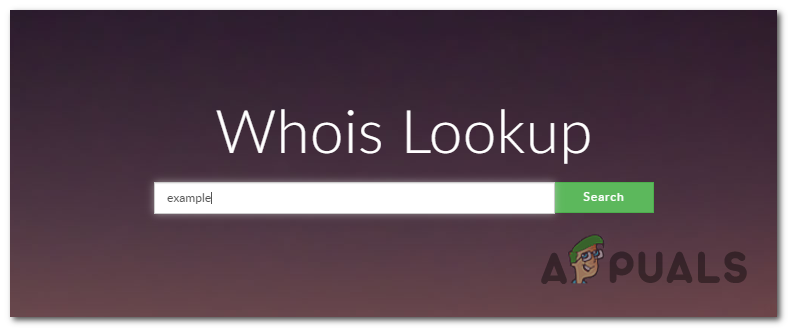 Getting contact information of webmastez
Top 3 Ways to Fix Your Clock Is Ahead/Behind Error in Google Chrome
Olanrewaju Sodiq
19 Feb 2020
Although the Chrome web browser keeps getting better, it’s normal to run into issues when using it on your computer occasionally. If you are trying to visit a website and you are presented an error message that reads ‘Your clock is ahead’ or ‘Your clock is behind,’ do not get fazed. It’s fixable, and we’ll teach you how to clear the error in this post.

Typically, Chrome displays this error when there’s a problem with your PC’s time and date configuration. However, you can attribute the error to other factors too. We cover everything you need to know about fixing Chrome’s ‘You clock is ahead’ error below.
Also on Guiding Tech
How to Fix Google Search Autocomplete Not Working in Chrome
1. Fix Incorrect Date & Time on Your PC
Security certificates help your browser keep you safe on the internet. If your device’s (mobile or PC) date is incorrect, it could muddle up Chrome’s ability to verify a website’s security certificates. That is another reason why you would see the ‘Your clock is ahead’ error on your computer screen. To fix it, simply adjust your computer’s time and date.
Step 1: Right-click the date and time section on your computer’s taskbar.

Step 2: Select ‘Adjust date/time’ option.

That redirects you to the ‘Date & Time’ section of the Windows Settings menu.
Step 3: If your PC’s date and time are incorrect, toggle off the ‘Set time automatically’ option.

Step 4: Under the ‘Set time and date manually’ option, tap the Change button.

Proceed to adjust your system date and time by inputting the correct time information.

Alternatively, you can simply sync your PC’s time to the Windows Time Server. That way, you can be sure of having an updated and accurate time/date on your computer. To do this, simply tap the Sync not button in the ‘Synchronize your clock’ section of the ‘Date & Time’ settings menu.

Note: Synchronizing your clock to the Windows Time Server requires an active internet connection.
2. Clear Browser Cookies & Cache
Temporary files (cached images and cookies) storing incorrect or outdated calendar and time information are sometimes responsible for the ‘Your time is ahead (or behind)’ error on your Chrome browser. Chrome may be obtaining (incorrect) time and date information from these files, hence the need to delete them. That would force Chrome to recapture date and time information from your computer.
Deleting these temporary files could help clear this error. Here’s how to get it done.
Step 1: Tap the Chrome menu icon at the top-right corner of the browser.

Step 2: Select Settings.

That opens the Chrome Settings menu in a new tab.
Step 3: Expand the Advanced settings menu.

Step 4: Next, select ‘Privacy and security’.

Step 5: Click the ‘Clear browsing data’ option.

Step 6: Tap the Time range drop-down button and change the time range to All time.

Step 7: Ensure that the ‘Cookies and other site data’ and Cached images and files’ options are checked then tap the Clear data button to proceed.

That will delete all browser cookies and cache files. When the process is completed, close the Chrome browser and restart your computer. Upon restart, the ‘Your clock is ahead/below’ error should no longer appear.
Note: Clearing cookies and cached files will sign you out of most websites you’ve previously logged into on the browser. Your Google account, however, will remain signed in.
3. Replace CMOS Battery
If Chrome browser continues to display the time error after clearing cookies & cache and syncing your PC’s clock with the Windows Time Server, then it’s time to replace your PC’s CMOS battery — it most likely is the reason why your PC’s clock keeps failing or resetting.

A CMOS battery is different from the regular battery that powers your laptop. It is a small-sized battery that is usually located on your PC’s motherboard and is responsible for maintaining the time, date, and other system configurations on your computer. Ever wondered how your computer’s date and time stay accurate even when you shut it down or remove its battery? Yes, the CMOS battery is responsible for that.
Also on Guiding Tech
# troubleshooting
If faulty, your computer, as well as some software, are bound to be ladened with one error or another. The Chrome ‘Your clock is ahead’ or ‘Your clock is behind’ errors are good examples.
Replacing the CMOS battery, however, requires some tools and technical knowledge. It is advised that you take your PC to a professional computer technician or a certified/trusted repair center.
Also on Guiding Tech
Google Chrome Extensions Not Syncing: Here Are 8 Ways to Fix It
To an Error-Free Chrome
The ‘Your clock is ahead/behind’ is majorly caused by incorrect time on your computer. Adjust your PC’s clock settings or try other troubleshooting tips mentioned above to clear the error message and use Chrome to surf your favorite websites like GuidingTech (wink) flawlessly. If these fixes don’t work, you should contact the administrator of the website you’re trying to visit because an expired SSL certificate could also spark this error.
Next up: Is Chrome’s dark mode not working on your Windows computer? Get it to show up ASAP with the handy troubleshooting tips in the article linked below.
Last updated on 19 Feb, 2020
The above article may contain affiliate links which help support Guiding Tech. However, it does not affect our editorial integrity. The content remains unbiased and authentic.
Read Next

Top 5 Ways to Remove Followers on Instagram
Removing unwanted followers from your # Instagram account is quite easy. Here are 5 best ways to remove followers on Instagram.

How to Block a Contact in Microsoft Teams
If you no longer want to receive calls or messages from a contact on # Microsoft Teams, you can block them. The article covers the different ways you can block them on Windows, Android and iOS devices.

How to Collaborate on Instagram Posts with Your Friends
You can use the # Instagram’s Collab feature to partner with your friends and work on a common posts on your feeds.

How to Create an Email Template in Gmail
# Gmail power users should utilize the templates for emails to save time and efforts. Here’s how you can create and manage templates in Gmail.

Top 7 Ways to Fix Unresponsive Pages in Google Chrome
Are the web pages acting weirdly on Google # Chrome? Here’s how you can fix unresponsive web pages in the # Google Chrome # browser.

How to Create a Custom Form in Microsoft Outlook
Looking to customize certain fields of your # Microsoft # Outlook meeting, appointment or outgoing mail? Here’s how you can customize forms in Microsoft Outlook.

Top 7 Ways to Fix Instagram Lag on iPhone and Android
Are you facing lag during # Instagram feed browsing? Here’s how you can fix Instagram lag on # iPhone and Android.

10 Best Notion Tips for Beginners
Are you looking to start your journey in # Notion? These tips will help you create Notion pages like a pro.
Did You Know
Play Music lets you upload around 50,000 tracks into the app.
Ошибки подключения SSL и как их исправить
Бывает, вы переходите на сайт, а браузер вместо него показывает ошибку. Сюда, мол, не пущу, подключение не защищено.
Причины возникновения ошибки бывают разными, но смысл всегда один — браузер не смог подключиться к сайту по HTTPS. Это значит, что вводить на этом сайте личные данные небезопасно. Вот браузер и показывает предупреждение.
В этой статье разберемся, какие бывают ошибки подключения SSL, с чем они связаны и как их исправить.
SSL-сертификаты Let’s Encrypt перестали работать на старых устройствах
С 30 сентября 2021 на некоторых устройствах сайты с сертификатами Let’s Encrypt будут открываться с предупреждением, что на сайте небезопасно. Это связано с тем, что компания перешла на новый корневой сертификат, которому пока не доверяют некоторые устройства. Из-за этого сайт с Let’s Encrypt и может отображаться как ненадёжный. Даже если на самом деле с ним всё в порядке.
Подробнее на эту тему читайте в статье в нашем блоге. Там же вы найдёте список устройств, на которых Let’s Encrypt не будет работать. А чтобы быстро решить проблему с совместимостью вы можете установить на сайт платный сертификат.
Что внутри
Причины возникновения
Все ошибки подключения SSL можно разделить на две группы:
Чтобы определить, какой тип ошибки в вашем случае, проверьте сайт при помощи сервиса decoder.link.
Если при проверке появилась надпись “It’s all good. We have not detected any issues”, проблема на стороне браузера. Если вместо надписи есть какая-то ошибка, проблема на стороне сайта.
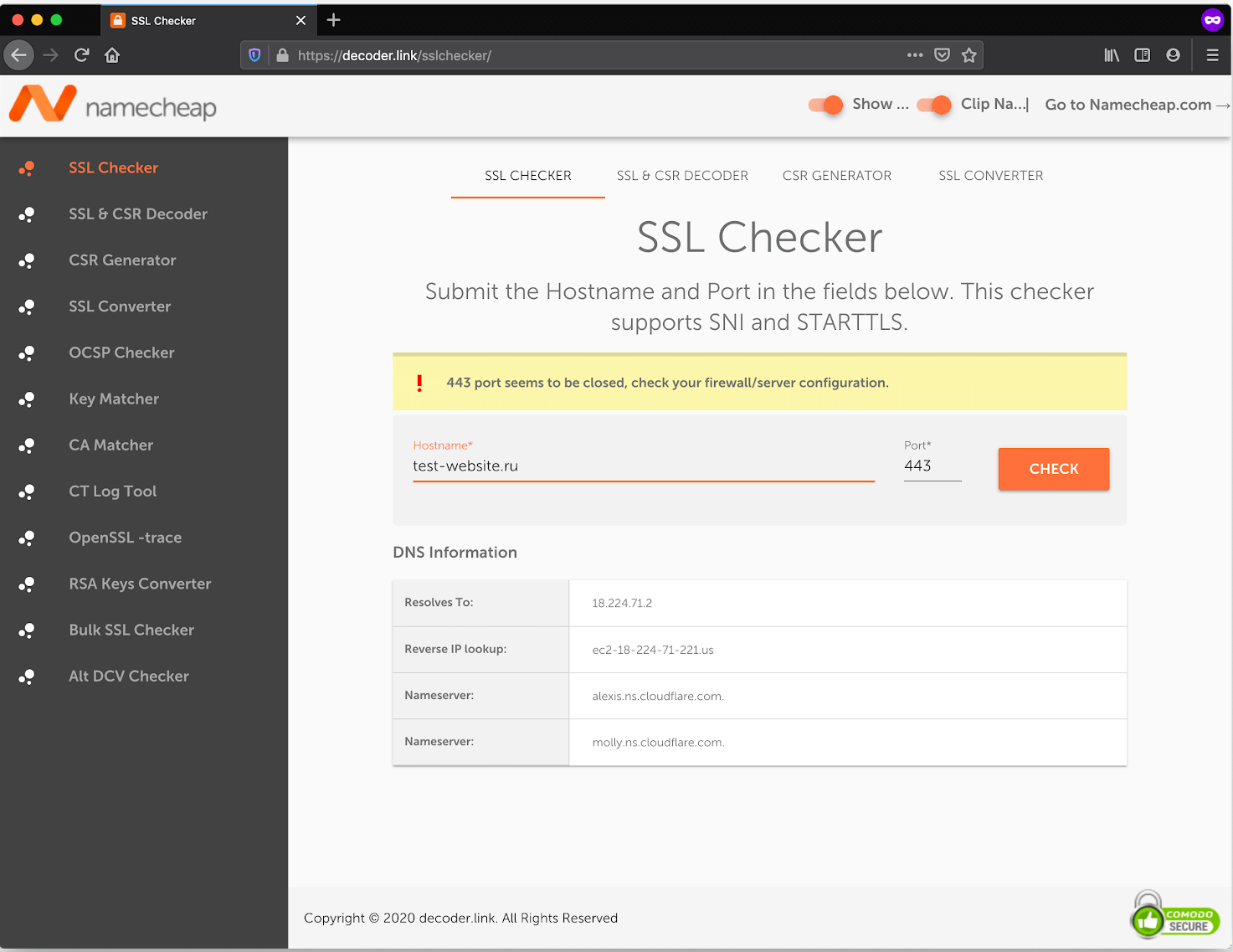
С ошибками на стороне сайта всё понятно: если вы не владелец сайта, тут ничего не сделать. Возможно, истёк срок годности сертификата или его неправильно установили. А может что-то не так с настройками сервера. Остаётся только ждать, когда владелец сайта заметит и устранит ошибку.
Разберёмся с ошибками подключения SSL на стороне браузера. Обычно их можно быстро исправить и всё-таки попасть на сайт. Вот основные причины, из-за которых они возникают.
Если вы заходили на сайт раньше и всё было нормально, попробуйте очистить кэш браузера. Возможно, он хранит какие-то устаревшие данные, которые мешают сайту загрузиться.
Как вариант можно зайти на сайт с другого браузера или устройства. Если заходит, значит скорее всего проблема именно в кэше.
Неправильные настройки даты и времени
Браузеру может показаться, что установленный на сайте сертификат недействителен, если время у вас на компьютере и на сервере, где лежит сайт, отличается. Убедитесь, что у вас стоит правильные время и дата.
Настройки антивируса или файервола
Бывает, антивирус не даёт зайти на сайт, потому что по ошибке добавил его в черный список или закрыл 443 порт, через который и происходит SSL подключение. Попробуйте отключить антивирус и зайти на сайт снова.
Устаревшая версия браузера
На сайте может быть технология, которая не поддерживается в вашей версии браузера. Например, новый алгоритм шифрования, протокол передачи данных или что-то в таком роде. После обновления проблема должна пройти.
Протокол QUIC
QUIC — это новая технология передачи данных в интернете. Она используется только в Google Chrome и браузерах, сделанных на движке Chromium: Opera, Microsoft Edge, Brave.
Поскольку технология новая, более старые версии серверов её не поддерживают. Из-за этого могут возникать ошибки.
Как вариант можете попробовать отключить QUIC и зайти на сайт ещё раз. Чтобы сделать это в Google Chrome, перейдите по адресу chrome://flags и введите в поиске QUIC. Затем выберите в выпадающем списке опцию Disabled.
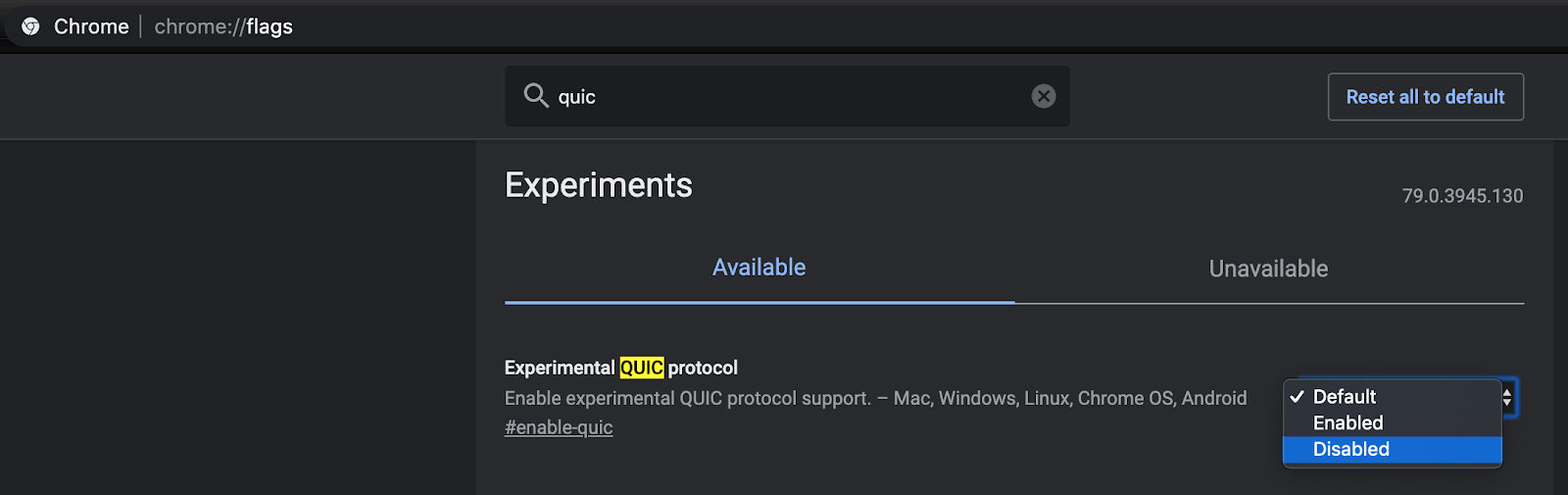
Конфликт между протоколами TLS
Протокол TLS — это набор правил, по которым браузер устанавливает безопасное соединение с сервером, где лежит сайт. Что-то вроде инструкции для компьютеров, которая помогает им договориться о шифровании.
На момент написания статьи есть семь версий этого протокола. Половину из них уже признали небезопасными, но на некоторых сайтах устаревшие протоколы всё ещё используют.
Иногда бывает так, что браузер использует последнюю версию TLS, а сервер — нет. В итоге появляется ошибка подключения SSL, потому что стороны не могут договориться о шифровании.
Сайт может начать открываться, если вы разрешите своему браузеру использовать устаревшие протоколы, но это небезопасно. Личные данные, которые вы введете на сайте после этого могут украсть. Делайте это только в крайнем случае, а потом лучше верните всё, как было.
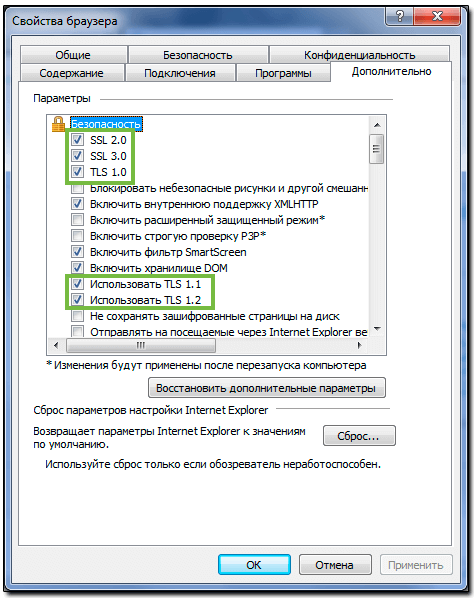
В Internet Explorer/Microsoft Edge нажмите для этого сочетание клавиш Windows+R и введите inetcpl.cpl.
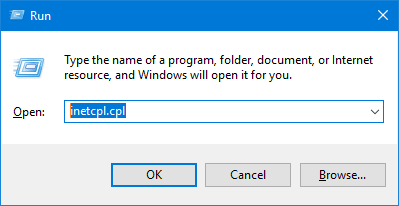
В открывшемся окне перейдите на вкладку «Дополнительно» (Advanced) и включите все протоколы SSL и TLS. Затем, нажмите «ОК». Не забудьте перезагрузить компьютер.
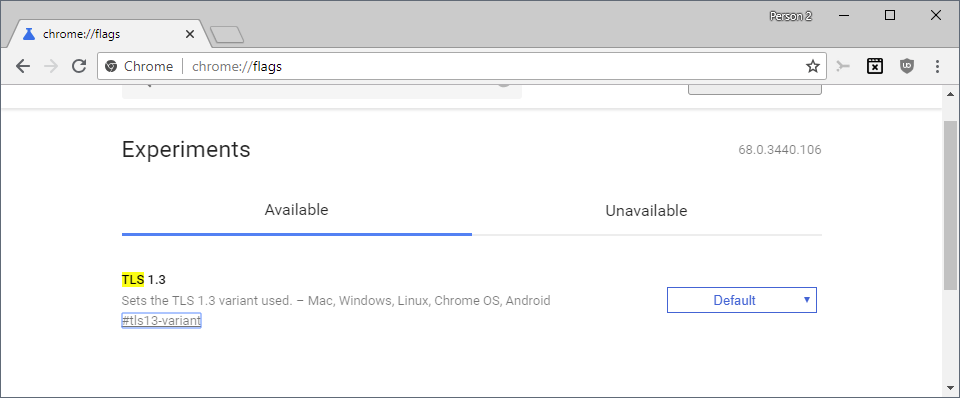
В старых версиях Google Chrome по умолчанию поддерживаются все версии протокола, кроме новейшего TLS 1.3. Чтобы его включить, введите в адресной строке chrome://flags/#tls13-variant. Затем в первой же строке установите значение “Default”.
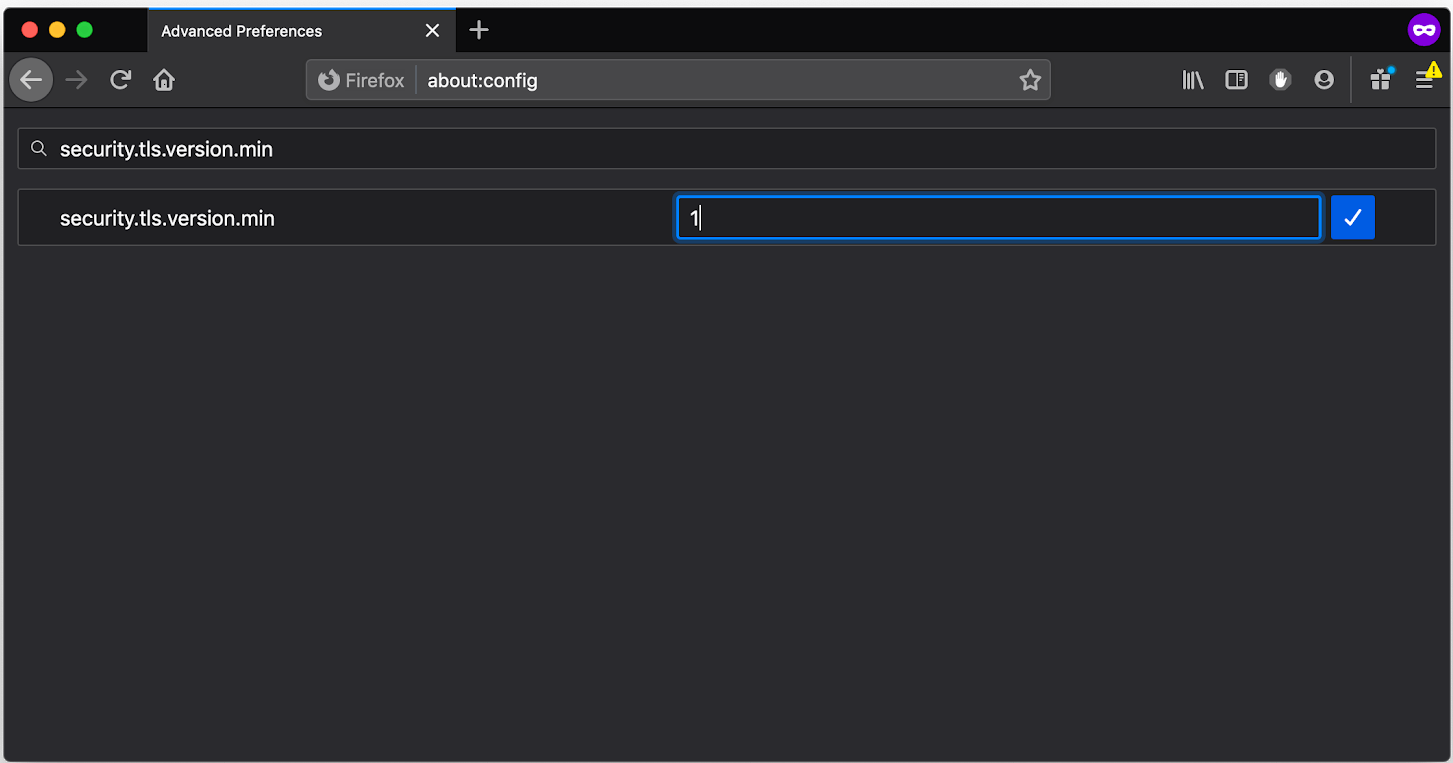
В Mozilla Firefox введите в адресной строке about:config. Затем найдите параметр security.tls.version.min и установите значение «1» вместо «2».
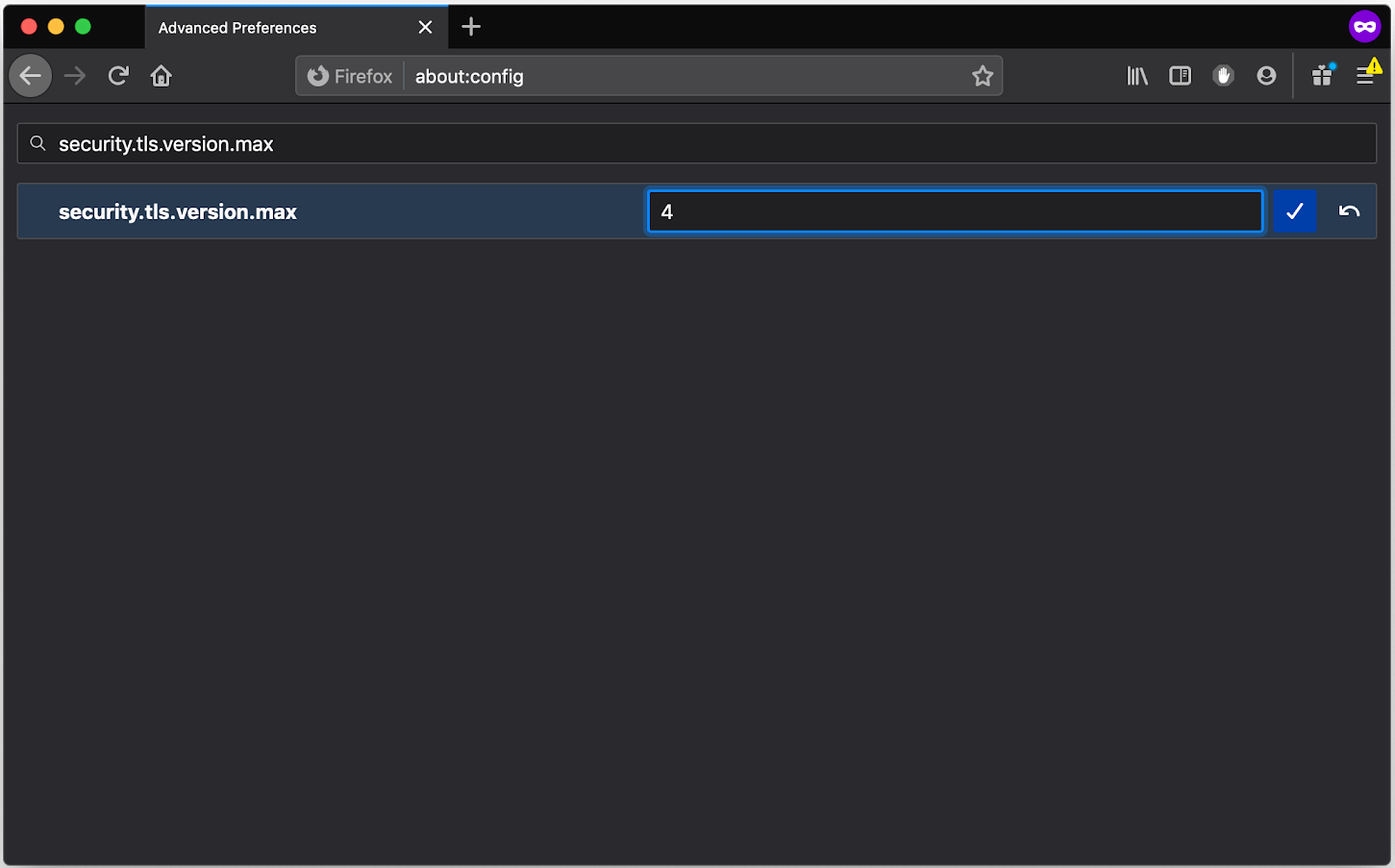
Затем найдите параметр security.tls.version.max и установите значение «4» вместо «3».
Примеры ошибок
1. Ошибка «Подключение не защищено»
В англоязычной версии браузера: Your connection is not private.
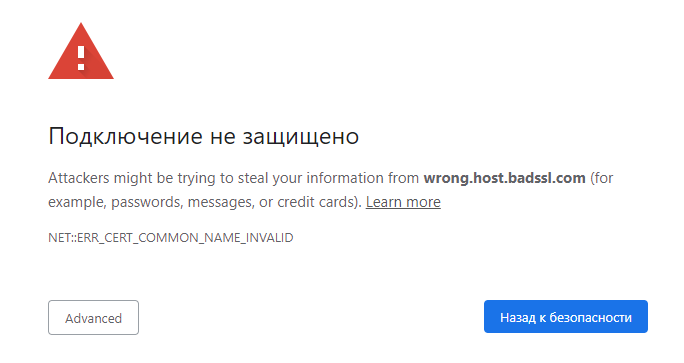
Код ошибки: ERR_CERT_COMMON_NAME_INVALID.
Что означает: доменное имя сайта не совпадает с именем в SSL-сертификате.
Что делать: почистить кэш или зайти на сайт с другого браузера.
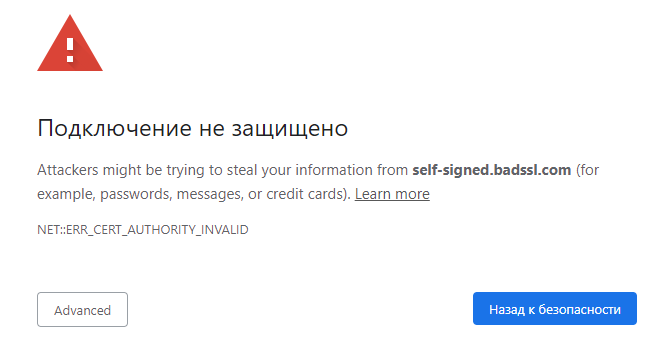
Код ошибки: ERR_CERT_AUTHORITY_INVALID.
Что означает: SSL-сертификат выпустил неверный/неизвестный центр сертификации.
Что делать: почистить кэш или зайти на сайт с другого браузера.
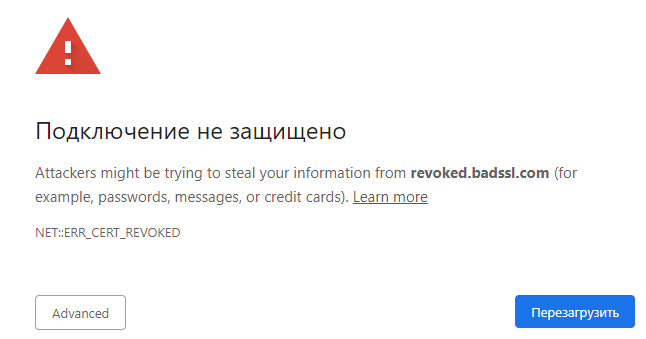
Код ошибки: ERR_CERT_REVOKED.
Что означает: центр сертификации отозвал сертификат. Обычно это бывает, когда сертификат забыли продлить после истечения срока действия. На сайте он по-прежнему стоит, но уже не действует.
Что делать: почистить кэш или зайти на сайт с другого браузера.

Код ошибки: ERR_SSL_PINNED_KEY_NOT_IN_CERT_CHAIN.
Что означает: на сайте используется устаревшая технология HPKP (HTTP Public Key Pinning).
Что делать: почистить кэш или открыть сайт в другом браузере. Если не помогло, проблема на стороне веб-сайта.
2. Ошибка «Часы спешат» / «Часы отстают»
В англоязычной версии браузера: Your clock is behind / Your clock is ahead.
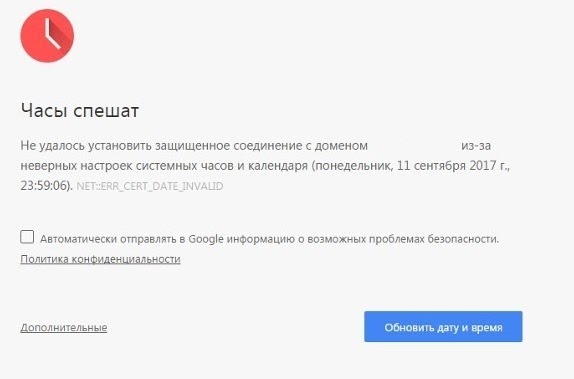
Код ошибки: ERR_CERT_DATE_INVALID.
Что означает: неправильная дата выпуска или истечения сертификата. Обычно такая ошибка возникает из-за того, что время на компьютере и сервере отличаются.
Решение: проверьте время и дату на устройстве. Если дата и время правильные, попробуйте очистить кэш.
3. Ошибка «Подключение к сайту защищено не полностью» / «Части этой страницы не защищены»
В англоязычной версии браузера: Your connection to this site is not fully secure / Parts of this page are not secure.
Что означает: после установки SSL-сертификата на сайте ещё остались элементы, которые загружаются по HTTP. Например, изображения. Если их загружали до установки сертификата, в ссылках останется HTTP.
Что делать: владельцу сайта придётся обновить ссылки вручную.
Просматривать сайт со смешанным контентом безопасно, но личные данные на нём лучше не оставлять.
4. Ошибка «Этот сайт не может обеспечить безопасное соединение»
В англоязычной версии браузера: This site can’t provide a secure connection.
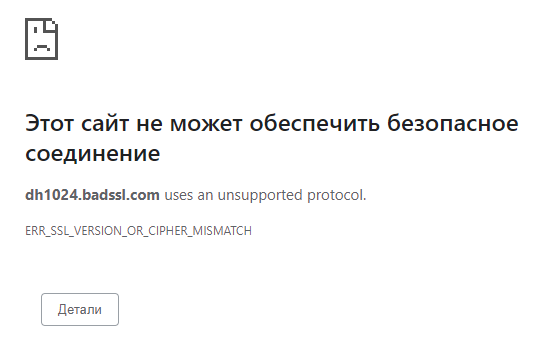
Код ошибки: ERR_SSL_VERSION_OR_CIPHER_MISMATCH.
Что означает: произошла ошибка при выборе протокола TLS. Обычно появляется, если сайт работает на сервере с устаревшим ПО или версия браузера слишком старая. В первом случае это ошибка на стороне сайта, во втором — на стороне посетителя.
Что делать: обновить браузер или использовать другой. Если не помогло, сайт использует более старые протоколы, которые можно включить только вручную. В этом случае есть риск, что личные данные, которые вы введете на сайте, попадут в руки мошенников.
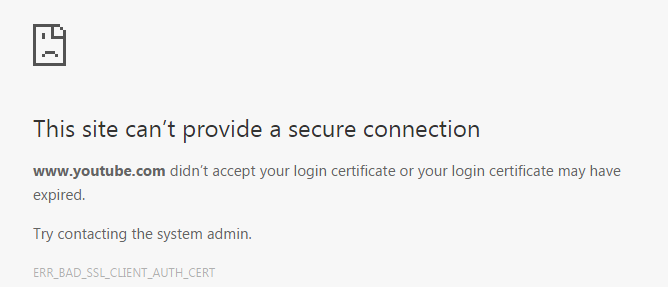
Код ошибки: ERR_BAD_SSL_CLIENT_AUTH_CERT.
Что означает: браузер и сервер в последний момент не смогли установить безопасное соединение. Часто случается из-за антивируса. В его настройках что-то по ошибке не дает браузеру и серверу договориться, в итоге происходит сбой аутентификации.
Что делать: отключите антивирус или отключите в его настройках фильтрацию протоколов SSL/TLS.
5. Ошибка «На сервере используется слабый эфемерный открытый ключ Диффи-Хелмана»
В англоязычной версии браузера: Server has a weak ephemeral Diffie-Hellman public key.
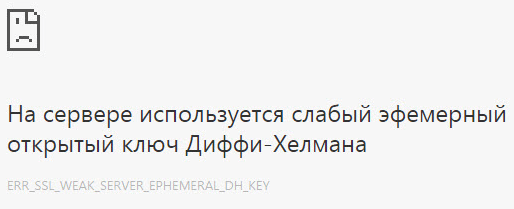
Код ошибки: ERR_SSL_WEAK_EPHEMERAL_DH_KEY.
Что означает: на сайте стоит слабый SSL-сертификат.
Что делать: лучше закройте сайт, если увидели такое предупреждение. Ваши данные здесь не в безопасности.